
|
Getting your Trinity Audio player ready...
|
iOS 26.1 Bugs: 15 Common Problems and Easy Fixes (Updated Guide 2025)
If you recently updated your iPhone to iOS 26.1 and now your phone is acting strange, you are not the only one. Many users are reporting iOS 26.1 bugs such as battery drain, heating, slow performance, Wi-Fi issues, and apps crashing. These iOS 26.1 issues are common and happen to many people after a big update. So don’t worry—most iOS 26.1 problems can be fixed with simple steps. In this easy guide, we will explain all the major iPhone issues after iOS 26.1 and show you quick solutions you can try at home. If your phone is draining battery fast or feeling slow, this guide will help you fix your iOS 26.1 battery drain and more.
Many iPhone users across the world are reporting problems like:
- Fast battery drain
- Heating
- Slow performance
- App crashes
- Wi-Fi or Bluetooth not working
- Camera lag
These issues are very common after a new iOS update.
The good news? Most of them can be fixed with simple steps.
Let’s start.
1. Battery Draining Fast After iOS 26.1 Update
This is the most common issue after updating to iOS 26.1.
Users say their battery drains even when the phone is not in use.
Why this happens
- iOS is still optimizing apps
- Background tasks running
- New AI features using more battery
- Location services running in background
Easy Fixes
- Restart your iPhone
- Turn on Low Power Mode
- Turn off Background App Refresh
- Disable Location for apps you don’t use
- Update all apps from App Store
- Reduce screen brightness
If your phone is new, battery drain usually gets better in 24–48 hours.
Mobile Data Not Working? 11 Proven Ways to Fix It
2. iPhone Overheating After iOS 26.1 Update
Some users say their iPhone gets hot while charging or during normal use.
Why this happens
- Heavy CPU usage after update
- Apps updating in the background
- Using phone while charging
- High graphics apps running
Easy Fixes
- Don’t use the phone while charging
- Close all background apps
- Turn off 5G temporarily
- Restart the phone
- Remove the phone case for 10 minutes
Heat usually comes down after a day or two.
3. iPhone Feels Slow or Laggy
If your phone is lagging after the update, don’t worry—this is normal.
Why this happens
- System files are being indexed
- Apps not updated to support iOS 26.1
Easy Fixes
- Restart your phone
- Free up storage (keep at least 5–10 GB free)
- Disable unused animations
- Update all apps
- Delete apps you don’t use
Most users say lag reduces after one day.
Phone Storage Full? 11 Easy Ways to Free Up Space Without Deleting Apps
4. Wi-Fi Not Connecting or Disconnecting
Many users report Wi-Fi dropping again and again after iOS 26.1.
Easy Fixes
- Toggle Wi-Fi off → wait 10 seconds → turn on
- Forget your Wi-Fi network → reconnect
- Restart your router
- Reset Network Settings (Settings → General → Transfer or Reset → Reset Network Settings)
Wi-Fi bugs are common after updates and usually get fixed by a reset.
5. Bluetooth Not Pairing Properly
Bluetooth speakers, headphones, smartwatches, or car audio may not connect.
Easy Fixes
- Turn OFF Bluetooth → wait → turn ON
- Unpair the device → pair again
- Restart iPhone
- Reset Network Settings
This problem usually happens because the device cache gets disturbed after update.
6. Apps Crashing After Update
Some apps may crash because they are not updated for iOS 26.1 yet.
Easy Fixes
- Update the app from App Store
- Reinstall the app
- Restart your phone
- Clear app data (if allowed)
Most developers release quick updates within a week.
7. Touchscreen Not Responding Properly
Few users say their screen becomes slow or stops responding.
Easy Fixes
- Clean your screen
- Remove screen protector
- Restart the device
- Force restart (quickly press Volume Up → Volume Down → hold Power)
If the issue continues, resetting settings may help.
Why is My iPhone Getting Hot? 11 Reasons and Fixes
8. Camera Not Opening / Black Screen
Camera app freezing or showing a black screen is also reported by some users.
Easy Fixes
- Close Camera app completely
- Restart the iPhone
- Switch between front and back camera
- Reset All Settings
This is usually a software glitch.
9. Keyboard Typing Slow or Lagging
Typing delay is common after updating.
Easy Fixes
- Restart your device
- Turn off Predictive Text
- Remove unused keyboards
- Update iOS keyboard settings
It gets better once indexing is complete.
10. Charging Becomes Slow
Some iPhones charge slowly after updating to iOS 26.1.
Easy Fixes
- Use original charger
- Clean charging port
- Turn off Optimized Battery Charging temporarily
- Restart your iPhone
Slow charging is sometimes due to system background tasks.
How to Boost Wi-Fi Signal Without Buying a New Router: 11 Proven Tips
11. Mobile Data Not Working
Network may drop or mobile data may stop working.
Easy Fixes
- Turn ON/OFF Airplane Mode
- Reset Network Settings
- Reinsert SIM card
- Set network mode to 4G temporarily
After the update, carrier settings may need to refresh.
12. Face ID Not Working Perfectly
Some users say Face ID takes longer to unlock.
Easy Fixes
- Clean the front camera area
- Remove screen guard
- Re-register Face ID
- Restart your iPhone
This is a common issue after updates and usually gets fixed in the next patch.
13. Sound Too Low or Distorted
iOS 26.1 may cause temporary sound glitches.
Easy Fixes
- Clean speakers
- Turn off Reduce Loud Sounds
- Restart iPhone
- Reset All Settings
Sometimes a simple restart is enough.
14. Notifications Not Coming
Users say notifications stopped appearing after the update.
Easy Fixes
- Check notification settings for each app
- Turn off all Focus Modes
- Restart the phone
- Update the problematic app
This issue usually gets fixed within a day.
YouTube Is Loading Slow With Fast Internet? Proven Fixes to Speed It Up
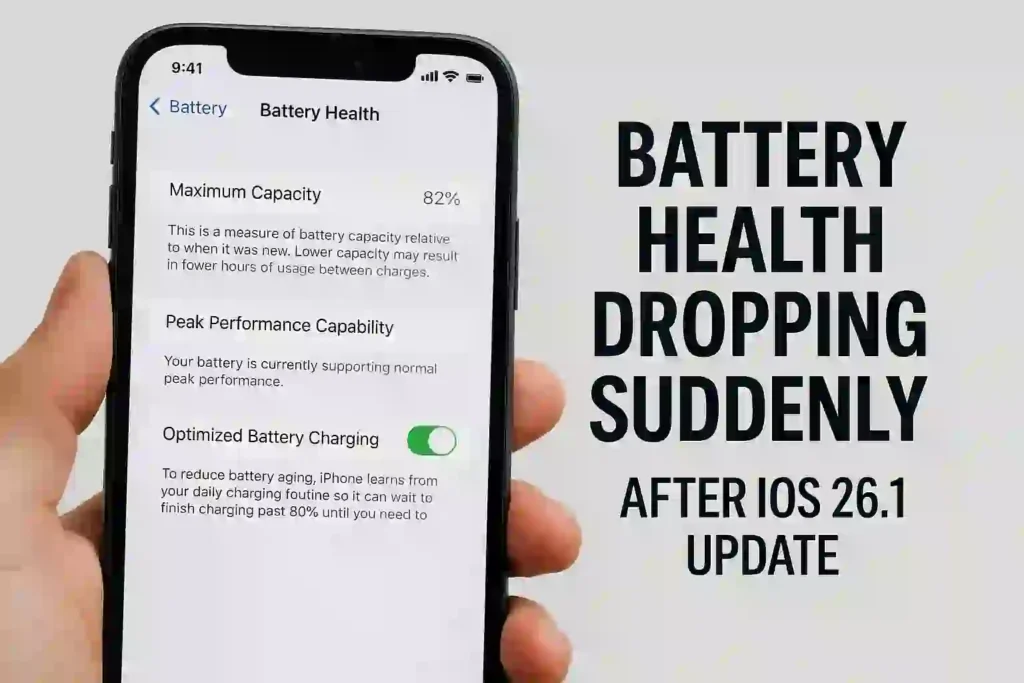
15. Battery Health Dropping Suddenly
Some users notice sudden battery health drop.
Why this happens
- iPhone recalculates battery health after a major update
- Temporary system load
Fix
- Don’t worry — the battery health usually corrects itself in 2–3 days.
- Avoid heavy usage for 24 hours.
Should You Update to iOS 26.1?
If you already updated, it’s fine — these bugs are normal and temporary.
If you haven’t updated yet, you can wait for iOS 26.2, which may fix many problems.
Apple usually releases small updates quickly to solve bugs found in major versions.
Conclusion
The iOS 26.1 update brings new features, but it also comes with common bugs like battery drain, heating, Wi-Fi issues, app crashes, and slow performance. Thankfully, most of these problems can be fixed with simple steps like restarting your iPhone, resetting network settings, updating your apps, or freeing up storage.
If the problems continue, don’t worry — Apple usually releases a patch quickly.
Your iPhone should become stable after a few days of normal use.
FAQs
1. Is iOS 26.1 stable?
Yes, but some minor bugs are reported by users.
2. Why is my phone heating after the update?
Because background tasks are running for optimization. It gets normal in 1–2 days.
3. My battery is draining fast. Is this normal?
Yes, it usually happens after every big update.
4. Do I need to reset my phone?
Try simple fixes first. Resetting is the last option.
5. When will Apple release iOS 26.2?
Apple may release it soon to fix issues found in 26.1.
6. Are iOS 26.1 bugs affecting all iPhone models?
Not all models are affected, but many users report the same iOS 26.1 bugs on iPhone 12, 13, 14, and 15 series. Older iPhones may show more issues.
7. Do iOS 26.1 bugs get fixed automatically over time?
Yes. Many iOS 26.1 bugs improve within 24–48 hours as the system finishes indexing and apps get updated.
8. Can iOS 26.1 bugs damage my iPhone?
No, most iOS 26.1 bugs are software-related and do not harm your device. They only affect performance temporarily.
9. How long does Apple take to fix iOS 26.1 bugs?
Apple usually releases a new update within 1–2 weeks to fix major iOS 26.1 bugs reported by users.
10. Can factory reset fix all iOS 26.1 bugs?
A factory reset can fix many iOS 26.1 bugs, but it should be your last option. Try simple fixes first before resetting your iPhone.