
|
Getting your Trinity Audio player ready...
|
Download the full “Google Storage Full?” guide for offline reading.
Google Storage Full? How to Free Up Space in Drive, Gmail & Photos (2026)
Seeing the Google storage full warning feels like opening your fridge and finding only leftovers you don’t remember storing. One day everything works fine. The next day, Gmail refuses new emails, Google Drive stops uploads, and Google Photos pauses backups.
Millions of users face this Google storage full problem every year. Google sends a Google storage full notification when your account crosses its storage limit. That message often reads scary, but the solution is simpler than it looks.
In this Google storage full 2026 guide, you’ll learn:
- Why Google storage fills up
- What happens when storage runs out
- How to clear Google storage safely
- How to prevent the problem from returning
This guide covers Gmail, Google Drive, and Google Photos, using methods recommended by Google itself.
Why Is My Google Storage Full? (Common Problems)
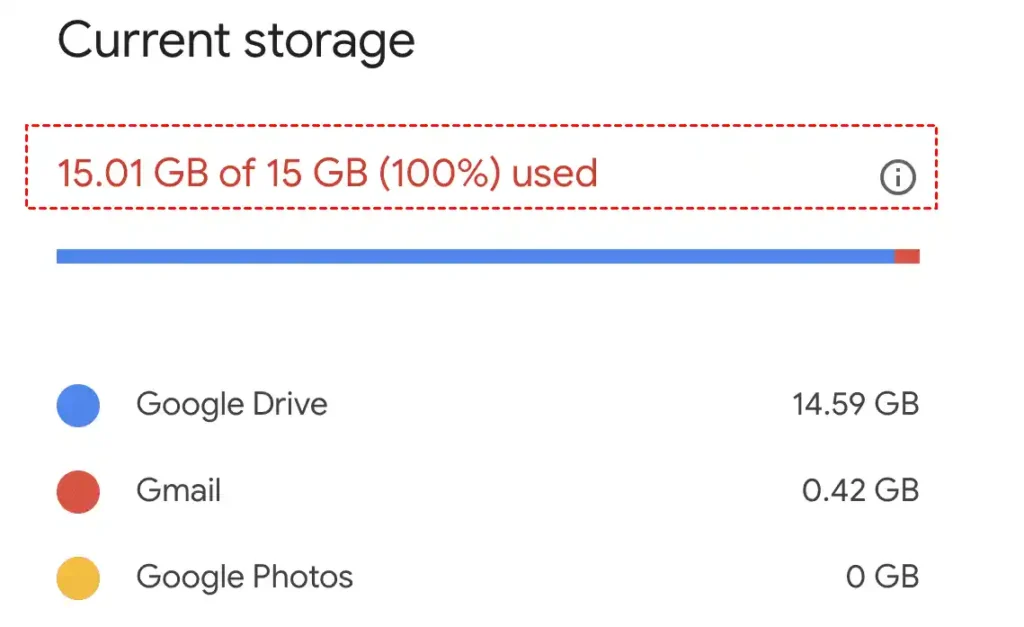
The Google storage full problem usually builds slowly. You don’t notice it until Google blocks something important.
1: Large Files in Google Drive
Old backups, shared folders, and forgotten videos often cause Google Drive storage full issues.
2: Gmail Attachments Taking Space
Emails with PDFs, images, and ZIP files quietly grow your Gmail inbox storage full problem.
3: Google Photos Backup Taking Space
Photos and videos uploaded in original quality consume storage fast, especially videos.
4: Trash & Hidden Files
Deleted files stay in trash for 30 days. Until you empty it, storage stays occupied.
5: WhatsApp & App Backups
Android users often forget WhatsApp backups stored in Drive.
You May Also Read – Struggling with iPhone Storage Full? Here’s What to Do.
What Happens When Google Storage Is Full?
When your account hits its limit, Google shows a Google storage full warning — and things don’t just slow down. Several important services stop working properly until you free up space or upgrade.
Here’s exactly what happens when Google storage is full.
1: Gmail Stops Receiving Emails
This is the most serious issue.
When Google storage is full, Gmail cannot receive new emails. Messages sent to you will bounce back to the sender, and you won’t even see them in your inbox.
This is why the Google storage full can’t receive emails problem needs urgent attention.
2: Google Drive Uploads Fail
You won’t be able to upload new files, create documents, or sync folders. If you use Drive for work or school, this can disrupt productivity fast.
This is a direct result of Google Drive storage full status.Google Photos Backups Pause
Photos and videos stop backing up from your phone. This increases the risk of losing memories if your device is damaged or reset.
This commonly triggers the Google Photos storage full message.
3: You Don’t Lose Existing Data
The good news: Google does not delete your files when storage is full. Your data stays safe — you just can’t add anything new until space is freed.
4: Apps and Sync Services Break
Apps that rely on Drive storage — such as WhatsApp backups or Android device backups — may stop syncing automatically.
How to Check Google Storage Usage (Step-by-Step)
Before deleting anything, you must know what’s using space.
1: Open Google One Storage Manager
Visit Google One → Storage.
2: View storage breakdown
You’ll see:
- Drive usage
- Gmail usage
- Photos usage
3: Identify large storage users
Google highlights files that consume the most space.
Source: Google One Storage Manager
You May Also Read – Best Android Cleaner Apps to Boost Speed & Free Up Space
How to Clear Google Storage (Complete Cleanup Guide)
Seeing the Google storage full warning can feel stressful — especially when Gmail stops receiving emails or Google Drive won’t upload files. But clearing your storage is easier than it sounds. With the right steps, most users can recover 5–10 GB in minutes.
This is your complete Google storage cleanup guide for 2026.
1: Check What’s Using Your Storage
Before deleting anything, open Google One → Storage. This shows exactly how much space Gmail, Drive, and Photos are using.
Knowing where the problem is helps you clear Google storage faster and avoid deleting important files.
2: Delete Large Files from Google Drive
If you’re facing Google Drive storage full, sort files by size and remove:
- Old videos
- Backup folders
- Unused archives
Then empty Trash — files in Trash still count toward storage.
This is the best way to free up Google Drive space.
3: Remove Large Gmail Attachments
Gmail attachments often cause Gmail storage full issues.
Search:
has:attachment larger:10M
Delete unnecessary emails and empty Trash to reclaim space immediately.
4: Reduce Google Photos Storage
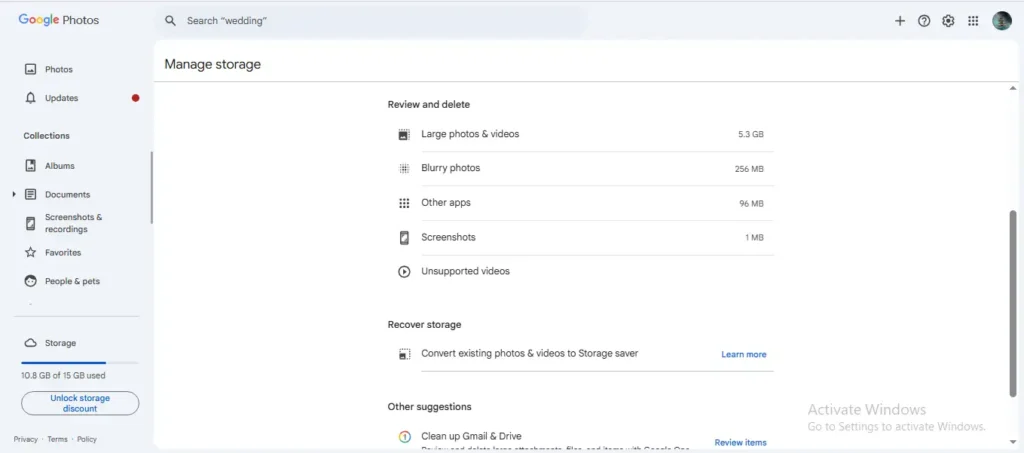
If Google Photos storage full is your issue:
- Switch uploads to Storage Saver
- Delete blurry photos, screenshots, and long videos
- Clear Photos Trash
This is the fastest way to reduce Google Photos storage without losing important memories.
5: Remove Hidden Backups
Many users say “Google storage full but nothing to delete.” This usually happens because of:
- WhatsApp backups
- Old device backups
Delete these from Google Drive → Backups.
6: Empty Trash Everywhere
Empty Trash in:
- Google Drive
- Gmail
- Google Photos
This step often restores storage instantly.
7: Free Up Google Storage Without Deleting Files
You can free up Google storage without deleting files by:
- Converting Photos to Storage Saver
- Downloading old Drive files to your computer
- Compressing documents
Perfect if you want a Google storage full fix without upgrading.
8: Use Google One Storage Manager
For the fastest cleanup, use Google One Storage Manager. It finds:
- Large files
- Duplicate photos
- Heavy email attachments
You can delete everything in one place — the best Google storage cleanup tool in 2026.
You May Also Read – Phone Storage Full? 11 Best Ways to Free Up Space Instantly
Google Drive Storage Full? Free Up Space Fast
1: Delete Large Files from Google Drive
Sort files by size. Remove videos, backups, and unused archives.
2: How to Delete Files from Google Drive
Select → Right-click → Remove.
3: Empty Google Drive Trash
This step matters. Files in trash still occupy storage.
4: Best Way to Clean Google Drive Storage
Focus on:
- Old backups
- Duplicate folders
- Shared files you own
5: Google Drive Storage Management Tips
- Download and archive old data
- Move files to external storage
Source: Google Drive Help Center.
Gmail Storage Full? Clear Gmail Space Fast
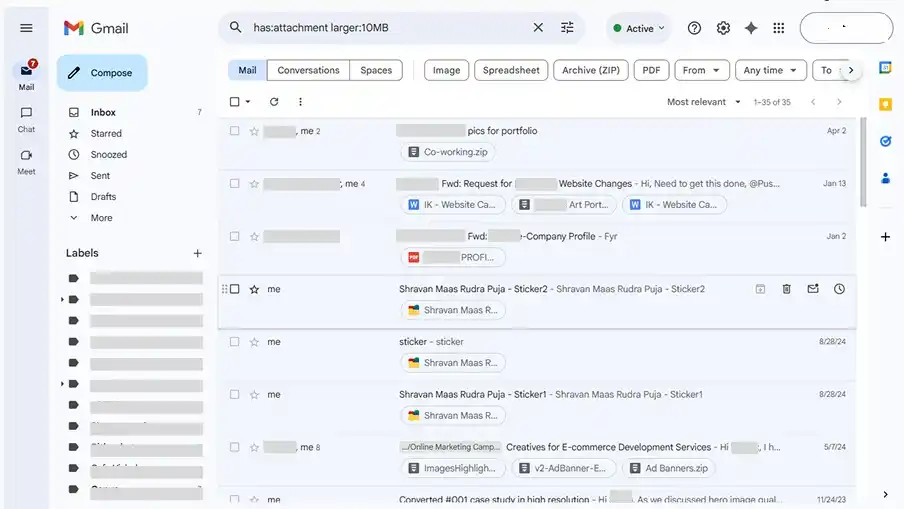
1: Delete Large Emails in Gmail
Search:
has:attachment larger:10M
2: Gmail Delete Large Attachments
Remove emails with videos, PDFs, and ZIPs.
3: Gmail Inbox Cleanup Tips
- Clear Spam and Trash
- Unsubscribe from promotions
Gmail deletes trash after 30 days, but manual cleanup works faster.
Source: Gmail Help Center
You May Also Read – 15 Best Tips To Maximize Google Drive Storage Like a Pro
Google Photos Storage Full? Reduce Usage Without Losing Photos
1: Google Photos Storage Saver Mode
This compresses photos without visible quality loss (Google-confirmed).
2: How to Compress Photos in Google Photos
Switch existing photos to Storage Saver from settings.
3: Delete Photos from Google Photos Safely
Remove blurry images, screenshots, and duplicates.
4: Reduce Google Photos Storage
Videos consume more space than photos. Review them first.
Source: Google Photos Help
How to Free Up Google Storage Without Deleting Files
Running into the Google storage full warning doesn’t always mean you must delete important files or memories. In many cases, you can free up Google storage without deleting files by using smarter compression tools, archiving data offline, and adjusting backup settings.
Here’s how to reclaim space safely in 2026.
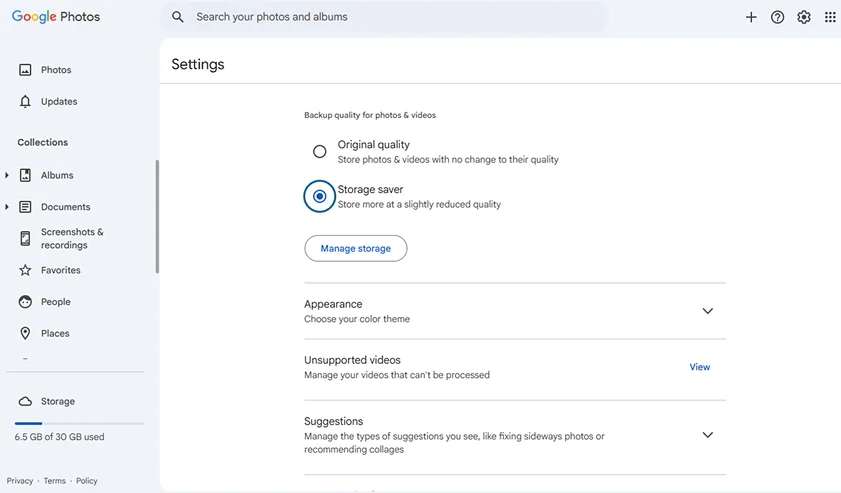
1: Convert Google Photos to Storage Saver
This is the fastest and most effective method.
Switch your Google Photos uploads from Original quality to **Storage Saver Google Photos uploads from Original quality to Storage Saver, then apply compression to existing photos. Google reduces file size while keeping images visually sharp.
This alone can recover several gigabytes and reduce Google Photos storage instantly.
2: Download Old Google Drive Files and Archive Them
Identify large or rarely used files in Google Drive, download them to your computer or external drive, then remove them from Drive.
This keeps your data safe while helping you free up Google Drive space without permanent loss.
3: Compress Documents and PDFs
Large PDFs, presentations, and scanned files can often be compressed using online tools before re-uploading to Drive. This helps reduce Google storage usage while keeping content intact.
4: Remove Device & App Backups You No Longer Need
Old Android device backups and WhatsApp backups silently consume storage. Deleting outdated backups doesn’t affect your current device but can free several gigabytes.
This fixes many Google storage full but nothing to delete situations.
5: Stop High-Storage Automatic Backups
Disable unnecessary photo backups, video uploads, and app syncs that aren’t essential. This prevents storage from refilling quickly after cleanup.
6: Use Google One Storage Manager
Google One’s Storage Manager highlights storage-heavy files and suggests compression or cleanup options — making it easier to manage Google storage space without deleting important content.
You May Also Read – Cloud Storage Full? 11 Easy Ways to Free Up Space
How to Stop Google Storage Full Notification Forever
Prevention saves time.
- Review storage monthly
- Control automatic backups
- Clean Gmail attachments regularly
This habit prevents another Google storage full notification.
Google Storage Full but Nothing to Delete? (Advanced Fixes)
Seeing the Google storage full warning but finding nothing obvious to remove is one of the most frustrating storage problems. You clean Drive, empty Gmail, delete photos — and yet Google still says you’re out of space.
This usually happens because of hidden storage usage, not visible files. Here’s how to**, not visible files. Here’s how to fix the Google storage full but nothing to delete issue in 2026.
1: Check Hidden Backups in Google Drive
Old Android device backups and WhatsApp backups often consume several gigabytes.
Go to:
Google Drive → Storage → Backups
Delete outdated backups you no longer need. This alone often fixes the Google storage full error.
2: Empty Trash Everywhere (Not Just Drive)
Files in Trash still count toward storage.
Manually empty:
- Google Drive Trash
- Gmail Trash
- Google Photos Trash
This step instantly restores space in many Google storage full but nothing to delete cases.
3: Look for Duplicate Files in Google Drive
Uploading files multiple times or syncing folders across devices often creates duplicates that silently use storage.
Sort Drive by size and remove unnecessary copies to free up Google Drive space.
4: Compress Google Photos Instead of Deleting Them
Switch Photos to Storage Saver mode and apply compression to existing uploads. This reduces file sizes without deleting images.
This is the safest way to reduce Google Photos storage when you don’t want to lose memories.
5: Clear Large Gmail Attachments
Search:
has:attachment larger:10M
Delete unnecessary emails and empty Trash. This resolves many Gmail storage full problems hiding behind the scenes.
6: Use Google One Storage Manager
Google One’s Storage Manager now flags:
- Large files
- Unsupported videos
- Blurry photos
- Heavy emails
It’s the fastest way to uncover hidden Google storage usage.
Free & Cost-Saving Google Storage Tricks
- Clean storage instead of upgrading
- Use external drives
- Archive rarely used files
Upgrade to Google One only when cleanup fails.
You May Also Read – Why Is My Wi-Fi So Slow? 11 Fixes to Boost Internet Speed
Google Storage Full Fix (2026 Updated Solutions)
Seeing the Google storage full warning in 2026 can feel frustrating, especially when Gmail suddenly stops receiving emails or Google Drive won’t upload files. But this problem is easier to fix than most people realize — and you usually don’t need to buy more storage.
Let’s walk through the latest Google storage full fixes, using real tools and features Google currently provides.
Why Google Storage Gets Full
Your free 15 GB Google storage is shared across:
- Google Drive
- Gmail
- Google Photos
Large Drive uploads, email attachments, and photo backups slowly fill it up — often without you noticing — until you see the Google storage full message.
1: Use Google One Storage Manager (Fastest Fix)
The Google One Storage Manager is the easiest way to fix the Google storage full problem in 2026.
It automatically finds:
- Large Drive files
- Emails with heavy attachments
- Duplicate and blurry photos
You can review and delete everything in one place, making this the best Google storage full fix for most users.
2: Fix Google Drive Storage Full Issues
If you’re facing Google Drive storage full, sort your files by size and delete old videos, backups, and unused folders.
Also remember to:
- Empty Drive Trash
- Remove files you own in shared folders
This is the fastest way to free up Google Drive space.
3: Fix Gmail Storage Full Problems
Large email attachments are a major cause of Gmail storage full errors.
Search:
has:attachment larger:10M
Delete unnecessary emails and empty Trash. This often fixes the Google storage full can’t receive emails issue instantly.
4: Reduce Google Photos Storage Without Losing Quality
If Google Photos storage full is the problem, switch uploads to Storage Saver mode. Google compresses photos with minimal quality loss.
Also delete:
- Blurry photos
- Screenshots
- Long videos
This is the most effective way to reduce Google Photos storage in 2026.
5: Empty Trash and Hidden Backups
If you see “Google storage full but nothing to delete,” check:
- Trash in Drive, Gmail, and Photos
- WhatsApp and device backups in Google Drive
These hidden files often take gigabytes of space.
6: Free Up Google Storage Without Deleting Files
You can free up Google storage without deleting files by:
- Converting Photos to Storage Saver
- Downloading old Drive files to your computer
- Compressing documents
This is ideal if you want a Google storage full fix without buying storage.
7: Stop Google Storage Full Notifications
To avoid future Google storage full notifications:
- Review storage monthly
- Clean Gmail attachments regularly
- Disable unnecessary backups
These habits prevent storage problems long-term.
Best Tips to Prevent Google Storage from Filling Up Again
Fixing the Google storage full problem once is helpful — but preventing it from coming back is even better. With a few smart habits, you can avoid future Google storage full warnings and keep Gmail, Drive, and Photos running smoothly.
Here are the best Google storage management tips for 2026.
1: Review Your Storage Monthly
Open Google One Storage Manager once a month to check what’s using space. This simple habit helps you catch large files, emails, and backups before they become a problem.
This is the easiest way to stop Google storage full notifications long-term.
2: Switch Google Photos to Storage Saver
Photos and videos use the most storage. Set Google Photos uploads to Storage Saver mode to reduce file size without noticeable quality loss.
This is the best way to reduce Google Photos storage automatically.
3: Delete Large Gmail Attachments Regularly
Use Gmail search:
has:attachment larger:10M
Delete unnecessary emails and empty Trash. This prevents Gmail storage full issues from returning.
4: Control Automatic Backups
Android devices and apps like WhatsApp back up data to Google Drive automatically. Review backup settings and disable anything you don’t need.
This helps prevent sudden Google Drive storage full errors.
5: Empty Trash and Spam Frequently
Deleted files stay in Trash for 30 days. Empty Trash and Spam manually to reclaim space immediately and avoid hidden storage buildup.
6: Archive Old Files Offline
Download rarely used Drive files and store them on your computer or external storage. This frees cloud space while keeping your data safe.
7: Use Google One Cleanup Alerts
Google One now sends smart alerts when storage gets low. Follow these recommendations early to avoid emergencies.
FAQs – Google Storage Full
1. Why is my Google storage full even after deleting files?
This usually happens because deleted files are still in Google Drive Trash, Gmail Trash, or Spam. Storage only frees up after you empty the trash. Old app backups and large email attachments can also continue using space.
2. How can I clear Google storage without buying more space?
You can clear Google storage for free by deleting large files in Google Drive, removing emails with large attachments in Gmail, switching Google Photos to Storage Saver, and emptying all trash folders.
3. What happens if Google storage is full?
When Google storage is full, Gmail stops receiving emails, Google Drive blocks uploads, and Google Photos pauses backups. Your existing files stay safe, but new data won’t be added until space is freed.
4. How do I check what is using my Google storage?
Open Google One Storage Manager to see a clear breakdown of storage usage across Google Drive, Gmail, and Google Photos. It also highlights files that take up the most space.
5. Does deleting Gmail emails free up Google storage immediately?
Yes, but only after you empty the Trash folder. Emails in Trash still count toward storage until they are permanently deleted.
6. How do I free up Google Drive space fast?
Sort files by size in Google Drive, delete large videos and backups, remove duplicate files, and empty Google Drive trash. This is the fastest way to recover space.
7. Why can’t I receive emails when my Google storage is full?
Google blocks incoming emails to protect system stability when your account storage is full. Once you free up space, Gmail starts receiving emails automatically.
8. Does Google Photos still use storage in 2026?
Yes. In 2026, photos and videos uploaded in Original Quality still count toward Google storage. Using Storage Saver mode helps reduce usage without noticeable quality loss.
9. How do I stop Google storage full notifications permanently?
Review storage usage monthly, control automatic backups, clean Gmail attachments regularly, and use Google One Storage Manager alerts to stay ahead of storage limits.
10. What uses the most Google storage?
Videos in Google Photos, large Google Drive files, old device backups, and Gmail attachments use the most storage. Videos consume far more space than photos or documents.
Conclusion
Dealing with a Google storage full issue can feel frustrating, but the solution is completely in your control. By understanding what counts toward Google storage and following the right Google storage cleanup guide, you can quickly clear Google storage without losing important data. Cleaning large files in Google Drive, removing unnecessary Gmail attachments, and optimizing Google Photos are the most effective ways to free up Google storage.
Regular storage checks and smart habits help you manage Google storage space and reduce future problems. With these proven steps, you can avoid Google storage full warnings, keep Gmail working smoothly, and prevent storage limits from interrupting your daily work in 2026 and beyond.
Written by Pavan Kumar
IT professional and tech blogger at Nexdigit. I write about smartphones, software, and everyday tech in a simple, honest way so readers can understand what really matters before buying or updating.