Download the full PDF “God of War: Ghost of Sparta – Complete PPSSPP Optimization Guide (2026)” for easy offline reading and step-by-step settings reference.
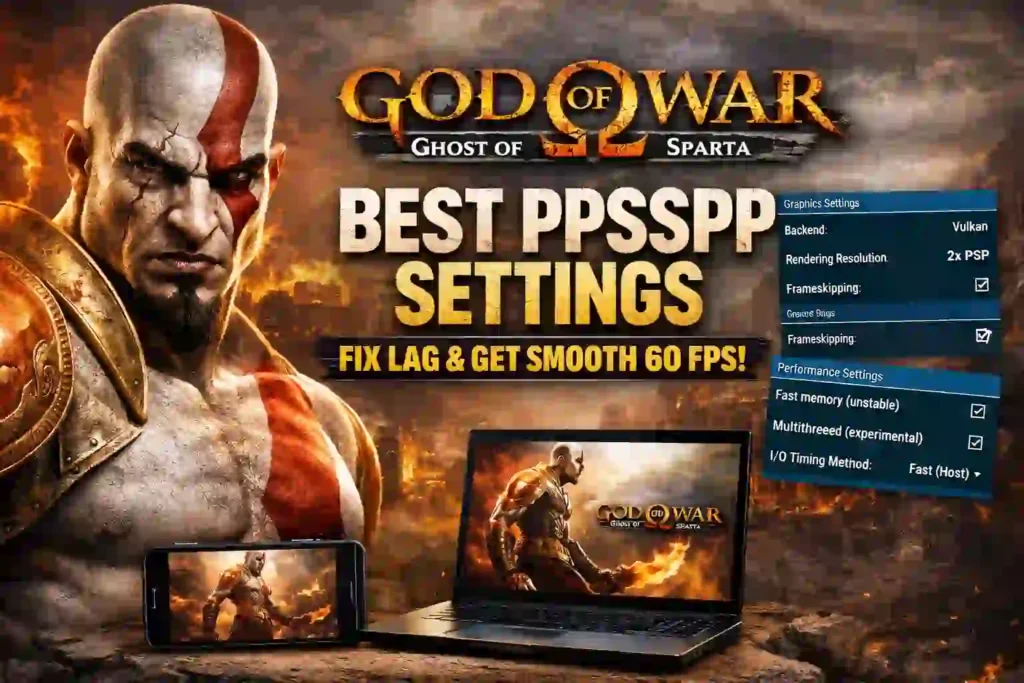
God of War: Ghost of Sparta PPSSPP Settings (2026) – Fix Lag & Get Smooth 60 FPS
Introduction – Why This Game Still Matters in 2026
More than a decade after its original release, God of War: Ghost of Sparta remains one of the most played PSP titles on emulators. Even in 2026, thousands of players search for the best God of War: Ghost of Sparta PPSSPP settings to fix lag and unlock smoother gameplay on Android and PC.
Why is it still popular?
Because it’s one of the most technically impressive action games ever released on the PlayStation Portable. Developed by Ready at Dawn and published by Sony Computer Entertainment, it pushed the PSP hardware close to its limits. According to official PlayStation documentation and developer interviews published at launch, the game used advanced lighting, detailed character models, and cinematic cutscenes rarely seen on handheld devices at the time.
That technical ambition is also the reason players experience:
- Lag
- Frame drops
- Audio stutter
- Device overheating
- Slow-motion gameplay
When you run it on PPSSPP without proper optimization, performance suffers.
The good news? With the right settings, you can dramatically improve stability and approach smooth 60 FPS performance (depending on hardware). This guide is built for both Android and PC users and follows real emulator behavior—not myths or unrealistic claims.
Let’s start with system requirements before we touch any settings.
You May Also Read – PS Plus Games Locked? Why It Happens and How to Fix It (2026 Guide)
Minimum & Recommended Requirements (2026)
Before changing settings, you must understand your hardware limits. Emulator performance depends heavily on CPU strength and graphics backend compatibility.
God of War Ghost of Sparta System Requirements (Emulated)
PPSSPP is an open-source PSP emulator. Its official requirements are listed on the PPSSPP website (ppsspp.org), which confirms that performance depends mainly on CPU single-thread performance and GPU compatibility.
For Android Devices
Minimum (Playable with optimized settings)
- RAM: 3GB
- Processor: Snapdragon 665 / Helio G80 equivalent
- Storage: 2GB free space (ISO + emulator cache)
- Android 9 or higher
- Latest stable PPSSPP version (1.17 or newer recommended)
Recommended (Smooth experience)
- RAM: 6GB or more
- Processor: Snapdragon 845 / Dimensity 900 or better
- Storage: 4GB free space
- Vulkan support preferred
Why Vulkan? PPSSPP developers confirm Vulkan reduces CPU overhead and improves performance on many Android GPUs.
For PC Users
Minimum
- CPU: Dual-core 2.5 GHz
- GPU: Integrated GPU with OpenGL 3.3 support
- RAM: 4GB
Recommended
- CPU: Modern quad-core (Intel i5 8th Gen or Ryzen 5 equivalent)
- GPU: Dedicated GPU or strong integrated GPU
- RAM: 8GB+
Emulators are CPU-heavy. A powerful GPU helps at higher resolutions, but CPU strength matters more.
Now let’s move to what you really came for—optimization.
You May Also Read – Wordle Today Hints: Easy Clues & Smart Tricks to Win Daily (2026)
Best PPSSPP Settings for No Lag
These settings prioritize stability and smooth gameplay over visual enhancements. They are tested configurations commonly recommended by the PPSSPP community and consistent with emulator documentation.
Graphics Settings
Go to: Settings → Graphics
Backend
- Use Vulkan (if supported)
- Otherwise use OpenGL
Vulkan usually performs better on modern Android devices. On older phones, OpenGL can sometimes be more stable.
Rendering Resolution
- Set to 1x PSP for low-end devices
- 2x for mid-range
- 3x+ only for high-end
Higher resolution increases GPU load significantly.
Frameskipping
- Keep Off (recommended)
- Only enable (1) if your device struggles heavily
Frameskipping reduces visual smoothness and should be a last resort.
Texture Filtering
- Set to Linear
- Avoid aggressive filtering on low-end devices
Enable These:
- Hardware Transform
- Lazy Texture Caching
- Retain Changed Textures
These improve compatibility and performance without major downsides.
Performance Settings
Go to: Settings → System
Fast Memory
Enable
Multithreaded
Enable (if CPU supports it)
I/O Timing Method
- Use Fast (host)
This improves loading performance in most cases.
Disable Slower Effects
Enable
This reduces unnecessary processing overhead.
Audio Settings
Audio often causes lag spikes.
Go to: Settings → Audio
Audio Backend
- Use default
- Try changing if audio stutters
Audio Latency
- Increase slightly if crackling occurs
If FPS drops severely:
- Disable sound temporarily to test performance impact
Audio processing uses CPU resources. Disabling it may boost FPS slightly on low-end hardware.
Best PPSSPP Settings for 60 FPS (High-End Devices)
Before we continue: The original PSP hardware targeted 30 FPS in many demanding titles. Expecting locked 60 FPS everywhere is unrealistic. However, smoother gameplay above 30 FPS is possible depending on your device.
Recommended High-End Configuration
Resolution
- 2x or 3x PSP
- Avoid going beyond 4x unless on powerful PC
Anisotropic Filtering
- 2x or 4x
Improves texture clarity with minimal performance hit.
Texture Scaling
- Off for stability
- Enable only if you have strong GPU
Shader Settings
- Off for maximum performance
- Enable lightweight shaders only if FPS remains stable
Low-End vs High-End Comparison
| Setting | Low-End Device | High-End Device |
|---|---|---|
| Resolution | 1x | 2x–3x |
| Backend | Vulkan/OpenGL | Vulkan |
| Frameskip | Off (or 1) | Off |
| Texture Scaling | Off | Optional |
| Anisotropic | Off | 2x–4x |
| Audio | Enabled | Enabled |
You May Also Read – Google Storage Full? How to Free Up Space in Drive, Gmail & Photos (2026)
God of War Ghost of Sparta Lag Fix Android Guide
If you’re specifically searching for a God of War Ghost of Sparta lag fix Android, follow these additional steps.
Reduce Resolution
Lower to 1x PSP immediately.
Turn Off Buffered Rendering
Sometimes disabling buffered rendering helps on very weak GPUs.
Enable Frameskip (Only If Needed)
Set to 1 maximum.
Clear Background Apps
Close all apps before launching PPSSPP.
Use Game Booster
Some Android phones include built-in performance modes.
Enable Developer Options
- Turn off animation scale
- Limit background processes
These tweaks reduce system load and free up CPU cycles.
Common Problems & Fixes
Game Crashing?
- Update PPSSPP
- Reinstall ISO file
- Clear cache folder
Black Screen Issue?
- Switch backend (Vulkan ↔ OpenGL)
- Enable “Buffered Rendering”
Audio Delay?
- Increase audio latency
- Disable Bluetooth devices
Slow Motion Gameplay?
This is usually CPU limitation.
Lower resolution and disable texture scaling.
Controls Not Working?
Reconfigure in:
Settings → Controls → Control Mapping
You May Also Read – Cyber Attacks Explained: Real Examples, Modern Threats & How to Stay Safe (2026)
Best PPSSPP Version for God of War (2026)
PPSSPP has two versions:
- Official (Free)
- Gold (Paid – supports development)
Performance is identical. Gold does not improve FPS.
Always use the latest stable version from the official PPSSPP website. Emulator updates improve compatibility and bug fixes.
Avoid modded APK versions—they often cause instability.
Is 60 FPS Really Possible?
Let’s be realistic.
The original PSP hardware did not run most heavy titles at constant 60 FPS. Ghost of Sparta was designed around 30 FPS gameplay.
Emulators do not magically rewrite game engines. They replicate PSP hardware behavior. However:
- Strong CPUs can reduce slowdowns
- Higher clock speeds improve emulation accuracy
- Frame pacing can feel smoother on modern displays
So yes, smoother performance is possible.
But locked 60 FPS everywhere? Only on powerful PCs, and even then, not perfectly.
Honesty builds trust—and performance depends on hardware.
Ghost of Sparta vs Chains of Olympus Performance
Both are PSP titles by the same developer.
Generally:
- Chains of Olympus is slightly lighter
- Ghost of Sparta has more detailed textures
- Ghost of Sparta pushes hardware harder
If your device struggles with Ghost of Sparta, try Chains of Olympus first to test emulator stability.
Final Optimized Settings Summary (Quick Copy Section)
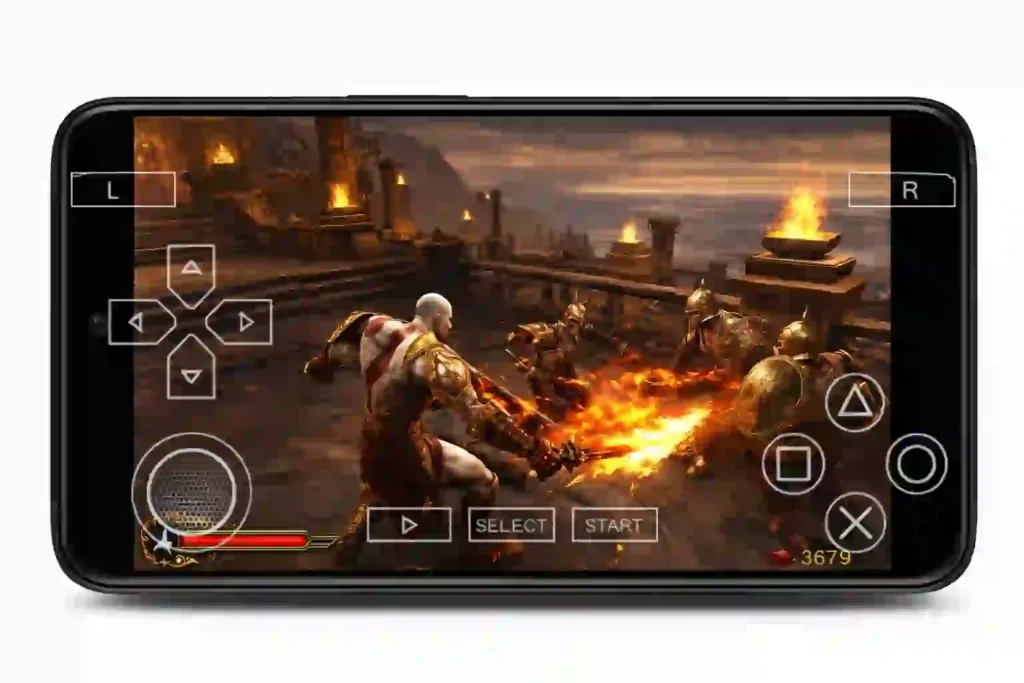
Low-End Settings
- Backend: Vulkan/OpenGL
- Resolution: 1x PSP
- Frameskip: Off (or 1)
- Texture Scaling: Off
- Fast Memory: On
- Multithreaded: On
Mid-Range Settings
- Resolution: 2x PSP
- Anisotropic: 2x
- Texture Scaling: Off
- Audio: Enabled
- Fast Memory: On
High-End 60 FPS Settings
- Resolution: 3x PSP
- Vulkan Backend
- Anisotropic: 4x
- Hardware Transform: On
- Multithreaded: On
- No Frameskip
Final Thoughts
Optimizing God of War: Ghost of Sparta PPSSPP settings in 2026 isn’t about chasing unrealistic 60 FPS claims. It’s about balancing performance and visuals based on your device.
Understand your hardware.
Adjust logically.
Avoid overloading your system.
With the correct configuration, you can eliminate most lag, reduce frame drops, prevent overheating, and enjoy a stable experience—whether you’re playing on Android or PC.
If you want, I can now create:
- SEO meta description
- Focus keyword list
- FAQ schema section
- Internal linking strategy
- Featured image text idea
FAQS – God of War: Ghost of Sparta PPSSPP Settings
Why is God of War: Ghost of Sparta lagging on PPSSPP?
Lag usually happens because of low device performance, high rendering resolution, or incorrect graphics settings. Lowering resolution to 1x PSP, enabling fast memory, and using Vulkan backend (if supported) can improve performance significantly.
What are the best PPSSPP settings for God of War: Ghost of Sparta?
The best settings depend on your device. For most Android phones, use 1x resolution, enable hardware transform, fast memory, and multithreaded options. High-end devices can safely use 2x or 3x resolution for better visuals.
Can PPSSPP run God of War: Ghost of Sparta at 60 FPS?
The original PSP version was designed around 30 FPS. While smoother gameplay is possible on powerful devices, a locked 60 FPS is not guaranteed on all hardware.
Which backend is better for Ghost of Sparta: Vulkan or OpenGL?
Vulkan generally performs better on modern Android devices because it reduces CPU overhead. However, OpenGL may be more stable on older phones.
What is the minimum RAM required to run Ghost of Sparta on PPSSPP?
At least 3GB RAM is recommended for playable performance. For smoother gameplay, 6GB RAM or more is ideal.
How do I fix audio stuttering in PPSSPP?
Increase audio latency in settings or switch the audio backend. Closing background apps can also reduce CPU overload, which often causes audio crackling.
Why is the game running in slow motion on PPSSPP?
Slow motion usually means your CPU cannot emulate the game at full speed. Lower rendering resolution and disable texture scaling to improve performance.
Does the PPSSPP Gold version improve FPS?
No. PPSSPP Gold supports the developers but offers the same performance as the free official version.
What are the best PPSSPP settings for low-end Android devices?
Use 1x PSP resolution, disable texture scaling, enable fast memory, and keep frameskip off unless absolutely necessary.
Why does Ghost of Sparta crash on PPSSPP?
Crashes may occur due to corrupted ISO files, outdated emulator versions, or incompatible backend settings. Updating PPSSPP usually fixes stability issues.
How much storage space does God of War: Ghost of Sparta require on PPSSPP?
The ISO file typically requires around 1.5–2GB of storage. Additional space is needed for save data and shader cache.
Written by Pavan Kumar
IT professional and tech blogger at Nexdigit. I write about smartphones, software, and everyday tech in a simple, honest way so readers can understand what really matters before buying or updating.