|
Getting your Trinity Audio player ready...
|
Download the full PDF “Create Best WhatsApp Avatar – Step-by-Step Guide 2026” for easy offline reading.
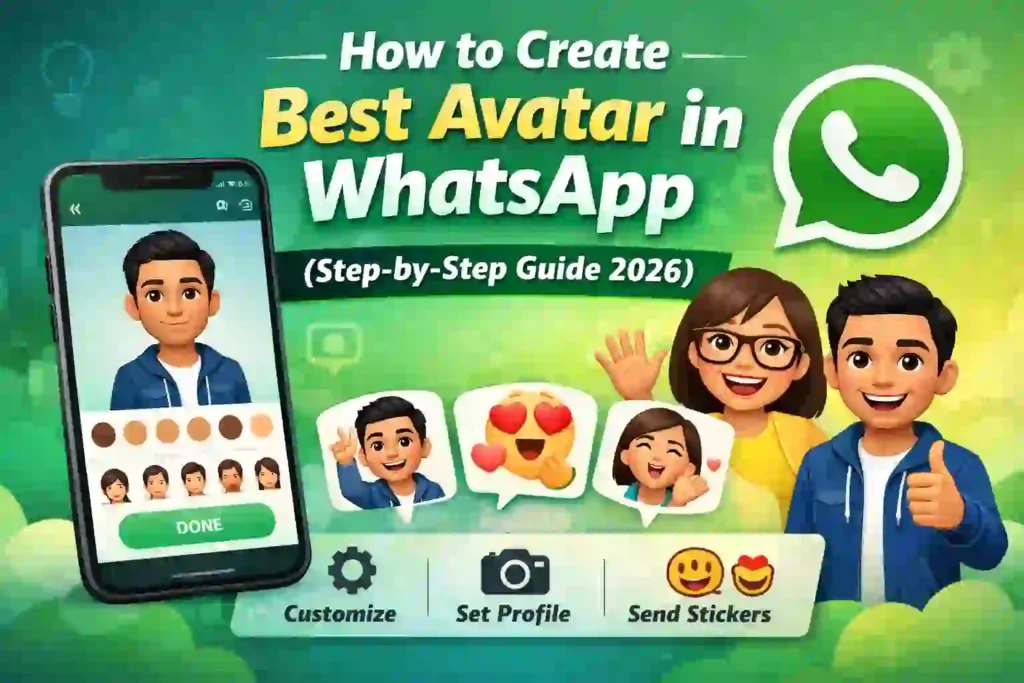
How to Create Best Avatar in WhatsApp (Step-by-Step Guide 2026)
Creating a digital version of yourself is no longer just for gaming platforms. With the built-in Avatar feature from WhatsApp, you can design a personalized cartoon version of yourself and use it as stickers, reactions, or even a profile photo.
In this complete 2026 guide, you’ll learn:
- How to create an avatar in WhatsApp (Android & iPhone)
- How to customize it professionally
- How to fix common avatar issues
- Privacy and safety details
- Expert tips to make your avatar look realistic (not awkward)
This guide follows official WhatsApp features and platform updates. All steps are based on publicly available information from WhatsApp’s Help Center and app interface.
What Is the WhatsApp Avatar Feature? And How to Create Best Avatar in WhatsApp
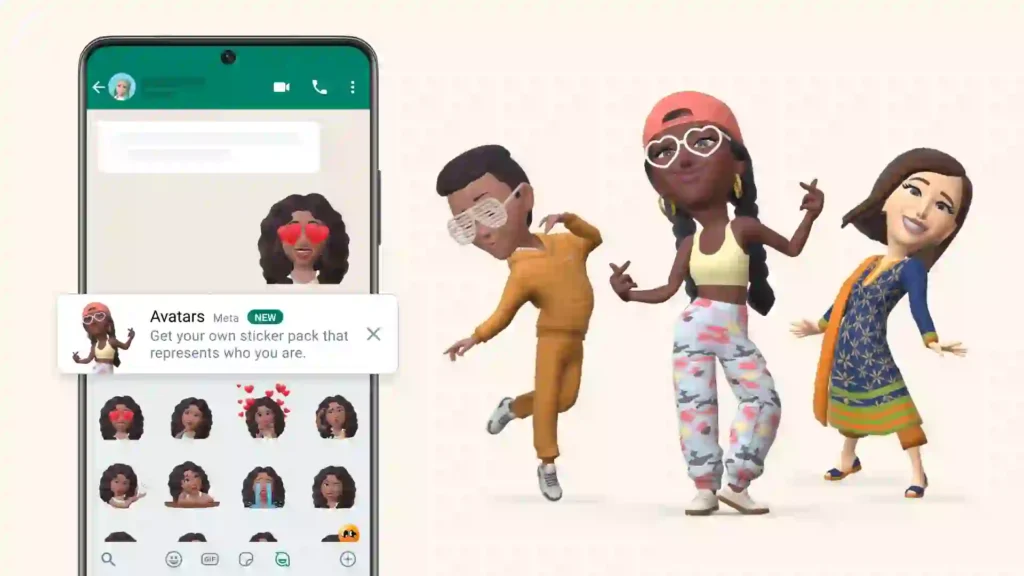
WhatsApp Avatar is a built-in customization tool that lets users create a digital character that represents them. Once created, WhatsApp automatically generates multiple expressive stickers based on your avatar.
According to official updates from Meta Platforms (WhatsApp’s parent company), avatars are designed to give users more personalized ways to express themselves in chats without sharing real photos.
You can use your avatar to:
- Set as a profile picture
- Send as stickers
- Use in chats and reactions
- Update anytime
Unlike third-party apps, this feature works directly inside WhatsApp. No extra downloads are required.
“I’ve tested this feature on both Android and iPhone to check customization depth and privacy settings. While the process takes less than five minutes, small adjustments in face shape and eyebrow style make a big difference in how realistic the avatar looks.”
You May Also Read – WhatsApp Account Hacked? Recover & Secure Your Account Step-by-Step (2026)
Step-by-Step: How to Create Avatar in WhatsApp (Android)
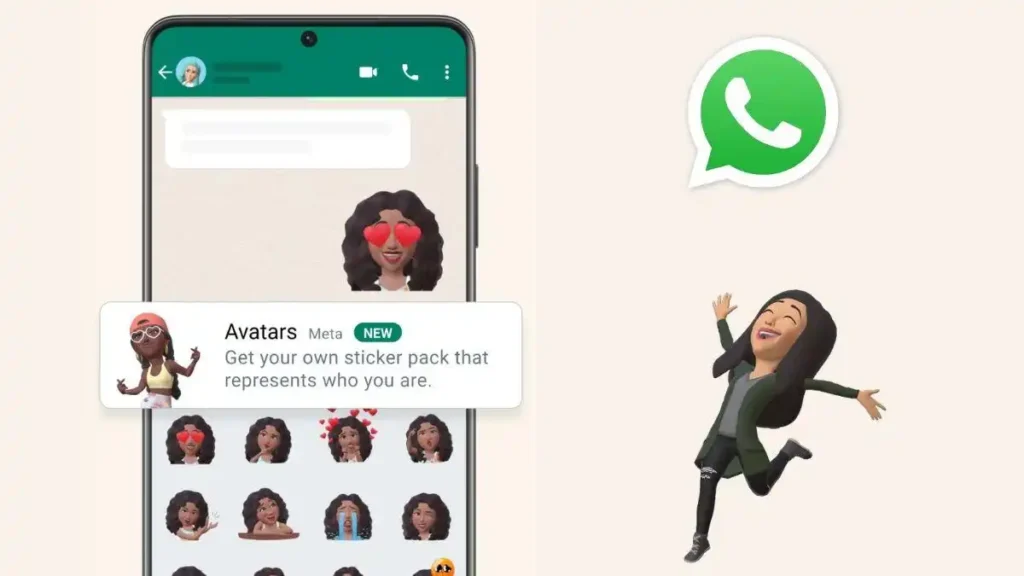
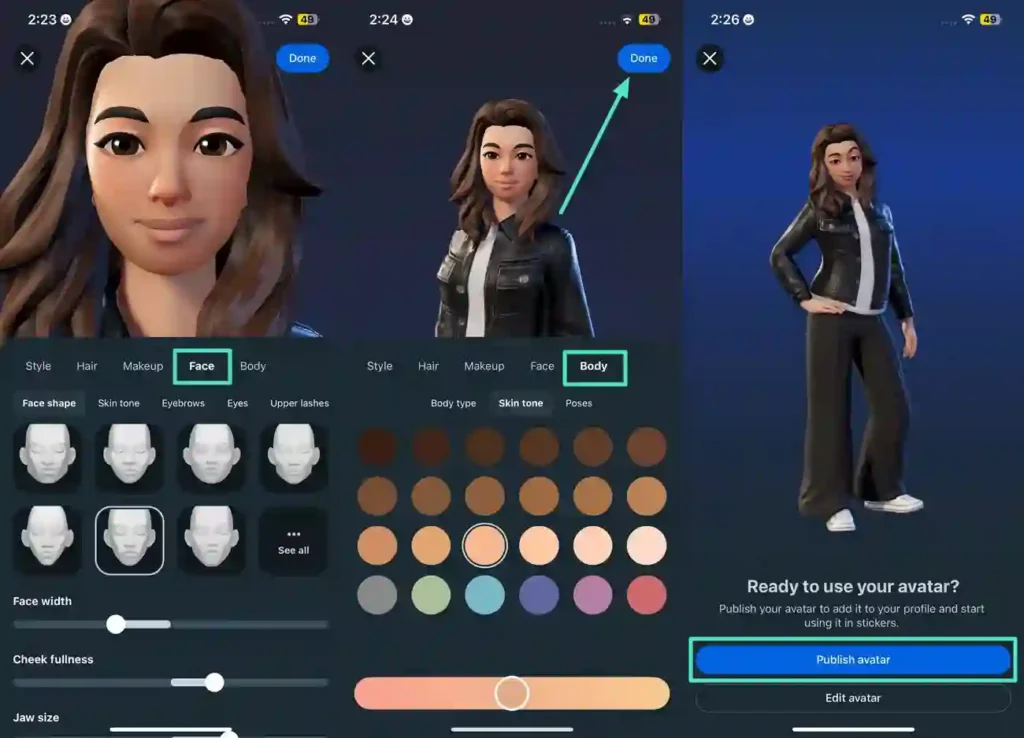
Follow these simple steps:
Step 1: Open WhatsApp
Launch the latest version of WhatsApp on your Android phone.
Step 2: Go to Settings
Tap the three-dot menu in the top right corner and select Settings.
Step 3: Select Avatar
Inside settings, you’ll see the Avatar option (if your app is updated).
Step 4: Tap “Create Your Avatar”
Start building your digital character.
Step 5: Customize Your Look
You can choose:
- Skin tone
- Hairstyle
- Face shape
- Eye color
- Eyebrows
- Outfit
- Accessories
Step 6: Save
Tap Done, and WhatsApp will generate your avatar sticker pack automatically.
That’s it. Your avatar is ready.
You May Also Read – How to Recover Deleted Photos and Images from WhatsApp on Android
How to Create Avatar in WhatsApp (iPhone)
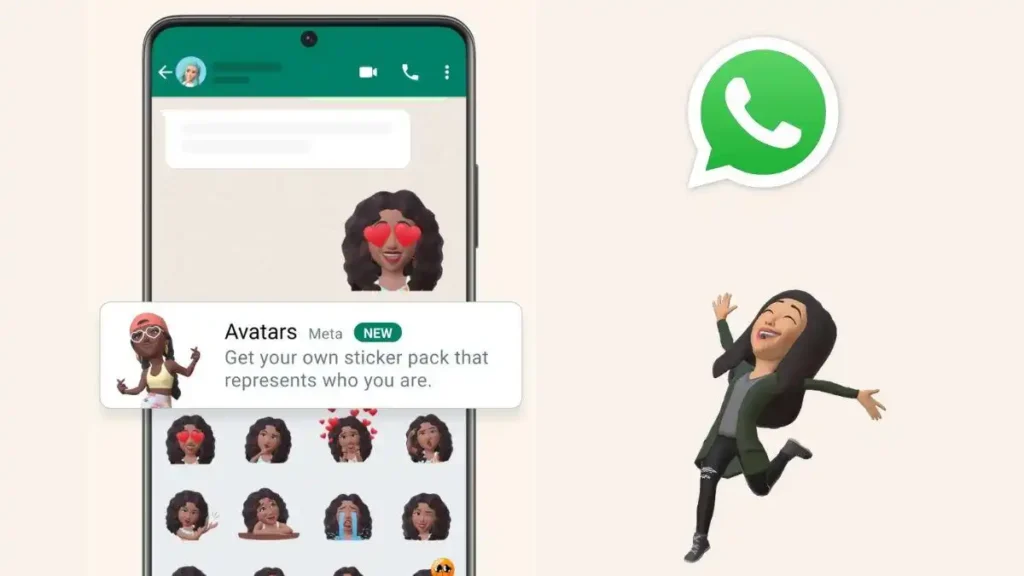
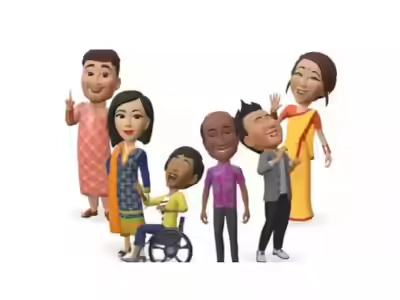
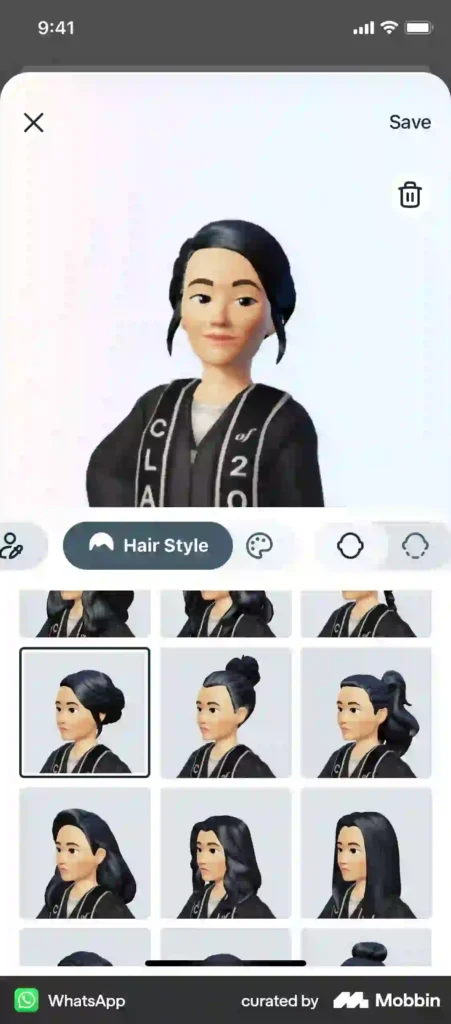
The process on iPhone is very similar:
- Open WhatsApp
- Tap Settings (bottom right corner)
- Select Avatar
- Tap Create Your Avatar
- Customize features
- Save
WhatsApp automatically creates a full sticker set for you.
How to Make the Best WhatsApp Avatar (Expert Tips)
Creating an avatar is easy. Creating a good avatar takes thought.
Here’s how to make yours look realistic and professional.
1. Match Your Face Shape Carefully
Most people rush this step. Take time to choose the correct jawline and cheek structure. It makes a huge difference.
2. Adjust Eye Spacing and Eyebrows
Eyebrows define personality. A small adjustment can change your avatar from “confused cartoon” to “confident professional.”
3. Choose Natural Colors
Avoid extreme hair or skin tones unless you want a playful look. Neutral shades appear more authentic.
4. Pick Outfits That Represent You
If you run a tech blog like Nexdigit, a clean casual or smart look works better than party wear.
5. Keep It Recognizable
Your avatar should resemble you enough that friends recognize it instantly.
Light humor tip: If your friends say, “Who is this?” — you may need to edit it again.
You May Also Read – Facebook Account Disabled? How to Recover It Quickly in 2026
How to Use Your WhatsApp Avatar
Once created, you can use it in several ways:
Use as Profile Picture
Go to:
Settings → Profile Photo → Choose Avatar
Send Avatar Stickers
Open a chat → Tap emoji icon → Select Avatar stickers
Edit Anytime
Settings → Avatar → Edit
Delete Avatar
Settings → Avatar → Delete Avatar
What If the Avatar Option Is Not Showing?
Instead of just saying “update the app,” explain:
- Feature rollout happens in stages.
- Beta users sometimes get it earlier.
- Clearing cache helps refresh app modules.
This is one of the most searched problems.
Here’s how to fix it:
1. Update WhatsApp
Go to:
- Google Play Store (Android)
- Apple App Store (iPhone)
Search for WhatsApp and update to the latest version.
2. Restart Your Phone
Sometimes the feature activates after a restart.
3. Check Regional Rollout
Features may roll out gradually in some countries.
4. Clear App Cache (Android Only)
Settings → Apps → WhatsApp → Storage → Clear Cache
Do not clear data unless necessary.
Is WhatsApp Avatar Safe?
Yes.
“According to official updates shared by Meta, avatars are designed to enhance user expression while maintaining WhatsApp’s privacy framework.”
According to WhatsApp’s official privacy documentation, avatar data is stored within your account environment and protected under WhatsApp’s end-to-end encryption system for chats.
However, remember:
- Stickers sent in chats follow the same privacy rules as messages.
- Your avatar is visible to contacts depending on your privacy settings.
To manage privacy:
Settings → Privacy → Profile Photo visibility
You can choose:
- Everyone
- My Contacts
- Nobody
You May Also Read – Best VPN for Mac in 2026 (Free & Paid Options)
WhatsApp Avatar vs Bitmoji: Which Is Better?
Snap Inc. offers Bitmoji through Snapchat.
“From a usability standpoint, WhatsApp’s built-in avatar wins for convenience, but Bitmoji offers deeper facial customization. If you prioritize speed, WhatsApp is enough. If you want extreme detail, Bitmoji is stronger.”
Here’s a practical comparison:
| Feature | WhatsApp Avatar | Bitmoji |
|---|---|---|
| Built-in | Yes | No (separate app) |
| Sticker Auto-Generation | Yes | Yes |
| Works Inside WhatsApp | Yes | Requires integration |
| Customization Depth | Moderate | Advanced |
If you mainly use WhatsApp, the built-in avatar is more convenient.
Best Practices for Professional Users
If you’re using WhatsApp for business or blogging:
Keep It Clean and Neutral
Avoid over-dramatic expressions for business chats.
Match Your Brand Identity
If your website theme is tech-focused, choose a modern outfit style.
Avoid Frequent Changes
Consistency builds recognition.
Common Mistakes to Avoid
Instead of generic mistakes, make it observational:
- Many users choose unrealistic skin tones.
- Most people ignore eyebrow shape.
- Some users forget to update the app before searching for the feature.
- Over-customizing with extreme colors
- Ignoring resemblance
- Using it in professional settings without thinking about audience
- Not updating app version
Why Avatars Matter in 2026
Digital identity is becoming more visual and expressive. Many platforms now include avatar features for personalization.
Avatars allow:
- Self-expression without sharing real photos
- Fun interaction in chats
- Safer digital presence
As messaging evolves, features like avatars enhance engagement without compromising privacy.
Final Thoughts
Creating the best avatar in WhatsApp is simple, but crafting one that truly represents you requires a bit of attention to detail.
Here’s a quick recap:
- Update WhatsApp
- Go to Settings → Avatar
- Customize thoughtfully
- Keep it recognizable
- Adjust privacy settings
The entire process takes less than five minutes, but the result can represent you in hundreds of conversations.
If you’re writing this for Nexdigit, consider adding:
- Internal links to WhatsApp troubleshooting guides
- A short video walkthrough
- A comparison section with other messaging apps
That will improve dwell time and user engagement naturally.
FAQ
1. How do I create an avatar in WhatsApp?
To create an avatar in WhatsApp, open the app and go to Settings → Avatar → Create Your Avatar. Customize your skin tone, hairstyle, facial features, and outfit, then tap Done. WhatsApp will automatically generate avatar stickers for you.
2. Why is the avatar option not showing in WhatsApp?
If the avatar feature is not visible, your app may be outdated. Update WhatsApp from the Google Play Store or Apple App Store. If it still doesn’t appear, restart your phone or wait for regional rollout updates.
3. Is WhatsApp avatar available on Android and iPhone?
Yes. The avatar feature is available on both Android and iPhone. Make sure you are using the latest version of WhatsApp to access it.
4. Can I use my WhatsApp avatar as a profile picture?
Yes. After creating your avatar, go to Settings → Profile Photo and choose your avatar as your profile image.
5. How do I edit my WhatsApp avatar?
To edit your avatar, go to Settings → Avatar → Edit. You can change hairstyle, outfit, facial features, and more at any time.
6. Can I delete my WhatsApp avatar?
Yes. Open Settings → Avatar → Delete Avatar. Once deleted, your avatar stickers will also be removed.
7. Is WhatsApp avatar safe and private?
Yes. WhatsApp follows end-to-end encryption for chats. Your avatar works within your existing privacy settings. You can control who sees your profile photo under Settings → Privacy → Profile Photo.
8. Can I create multiple avatars in WhatsApp?
No. Currently, WhatsApp allows only one avatar per account. You can edit the existing avatar anytime.
9. Does creating an avatar cost money?
No. The WhatsApp avatar feature is completely free to use.
10. How is WhatsApp avatar different from Bitmoji?
WhatsApp avatar is built directly inside WhatsApp, while Bitmoji (from Snap Inc.) is a separate app that integrates with messaging platforms. WhatsApp’s version is simpler and does not require additional downloads.
About the Author
Pavan Kumar is a tech blogger and IT professional who writes practical guides on mobile troubleshooting, WhatsApp features, and digital privacy at Nexdigit.